Startup Systems
Covers: installation, first-run setup, version update notifications, and manual update checks.
Installing Blue Synergy (Windows Security Warning)
Blue Synergy is not yet code-signed. Windows Defender SmartScreen will warn you when you run the installer for the first time. This is expected — follow these steps to proceed:
- Run the installer (
Blue Synergy_x.x.x_x64-setup.exe). - When the “Windows protected your PC” dialog appears, click More info.
- Click Run anyway.
The app then installs normally. This warning only appears once per installer version.
We are working on obtaining a code-signing certificate. Once signed, this warning will no longer appear.
First-Run Setup
When you launch Blue Synergy for the first time, a setup wizard appears before the main window. It lets you configure three defaults — everything can be changed later in Settings.
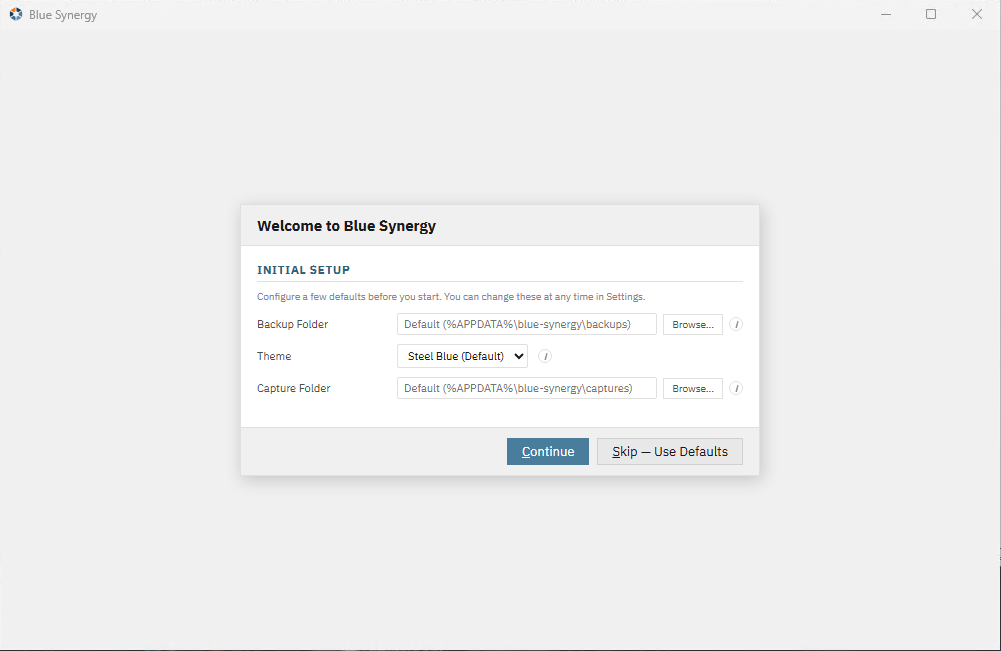
Fields
| Field | Default | Notes |
|---|---|---|
| Backup Folder | %APPDATA%\blue-synergy\backups |
Where ZIP backups are saved. Leave empty to use the default. |
| Theme | Steel Blue | The UI color theme. The preview updates live as you change it. |
| Capture Folder | %APPDATA%\blue-synergy\captures |
Where screenshots are saved. Leave empty to use the default. |
Buttons
- Skip — Use Defaults — Closes the wizard immediately and applies all defaults.
- Continue — Saves your input (empty fields fall back to their defaults).
After completing the wizard, it never appears again. To change these settings later, go to Tools > Global Settings.
Secure Vault Setup
Directly after the first-run wizard, a Secure Vault Setup dialog appears. Blue Synergy uses an AES-256 encrypted vault to protect sensitive clips — it is automatically unlocked with your Windows login via DPAPI, so you never need to enter a password just to use the app.
Recovery Password (optional)
You can set an optional recovery password. This is only needed if you want to:
- Export locked clips to another machine
- Restore encrypted clips after a Windows reinstall
If you skip the recovery password, locked clips are tied to your current Windows account and cannot be transferred or recovered.
Buttons
- Set Up Vault — Sets up the vault with your recovery password.
- Set Up Without Password — Sets up the vault using only your Windows login (no recovery option).
- Skip for now — Skips setup entirely. Click a second time to confirm — a warning explains what you lose without a recovery password.
You can configure the vault later in Settings → Clips → Secure Vault.
Version Update Banner
When a newer version of Blue Synergy is available, a banner appears below the tab bar:
↑ Blue Synergy update is available vX.X.X [Update Now] [See Changes] [Dismiss]
- Update Now — Downloads the update in the background. A progress bar appears while downloading. Click Cancel to abort.
- See Changes — Opens the changelog to review what’s new before updating.
- Dismiss — Hides the banner for this version. It won’t reappear unless a newer version is released.
Once the download completes, the banner changes to:
✓ Download complete [Install]
Click Install to apply the update — Blue Synergy restarts automatically.
Check for Updates
Open the update dialog at any time via Help > Check for Updates…
Embedded Changelog
Always available — no internet required. Shows all release notes since your last recorded version.
Remote Update Check
Click Check for Updates inside the dialog to fetch the latest release manifest. Requires an internet connection.
- If a newer version is available, a Download button opens your browser to the release page.
- If you are up to date, a confirmation message is shown.
- If the check fails, an error is shown — the app continues to work normally.
Database Migration
Blue Synergy automatically updates its internal database schema on startup when a new version requires it. This happens silently — no action needed.
If a migration fails, the app reports the error on launch. This has never happened — but if it does, use File > Maintenance to create a backup and contact support at support@blue-synergy.com.